Pages: Templates and editing
The page is a central unit in the additor® system. Pages contain sections where entries can be placed. A page can have any number of sub-pages. Each page has a unique page ID, which is visible to the editor at different points in the system and is used for internal linking.
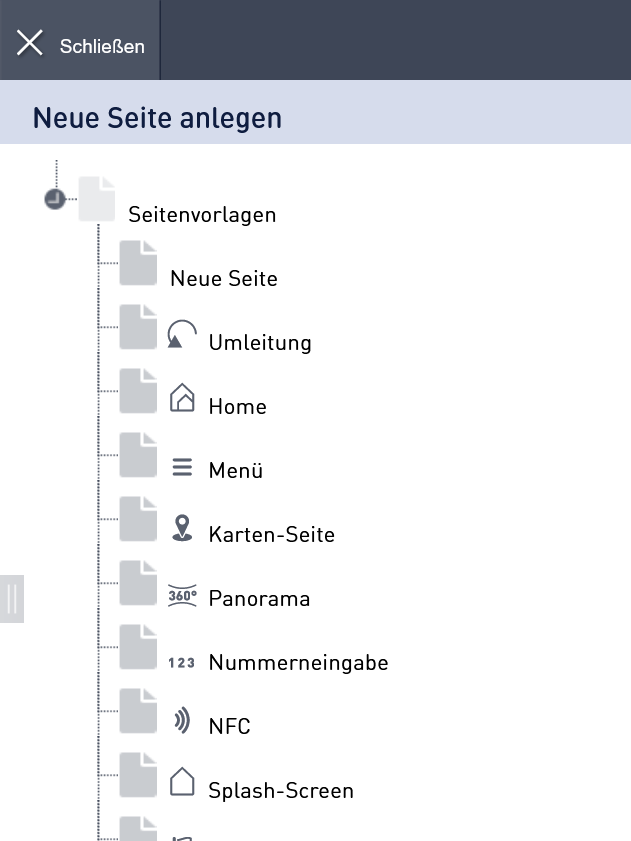
To create a new page, click on the "New page" button in the action bar. In the Layout view, the selectable page templates are opened.
Select the appropriate page template for your new page and drag it to the right place in the side tree.
Copy the page
You can also copy an existing page and paste it elsewhere in the page tree. To do this, right-click on the desired page in the page tree. A menu window opens. If you select "Copy", the page will be visible in the clipboard. From there, you can paste the page as often as you want.
Arrangement of the pages in the side tree by "Drag & Drop":
When you create a new page, you can place it as follows:
- either create a bottom of an existing page, drag the new page to the middle of the page symbol in the page tree.
- or they create a page on the same level as an existing page, so to say a neighboring page. To do so, drag the page to the top or bottom of the page symbol in the side tree. It is inserted accordingly above or below.

When you right-click on a page in the page tree, a menu appears with the page ID in the first line.
Here you can open the page directly in the layout window via "Edit" and decide whether you want to edit the published version or to display the page in the browser.
Furthermore, the page can be conveniently renamed, copied, cut out or deleted.
If you use this menu to create a teaser entry, a reference entry or a forwarding page, these are placed in the clipboard and can be installed directly at the desired location.
