8-4
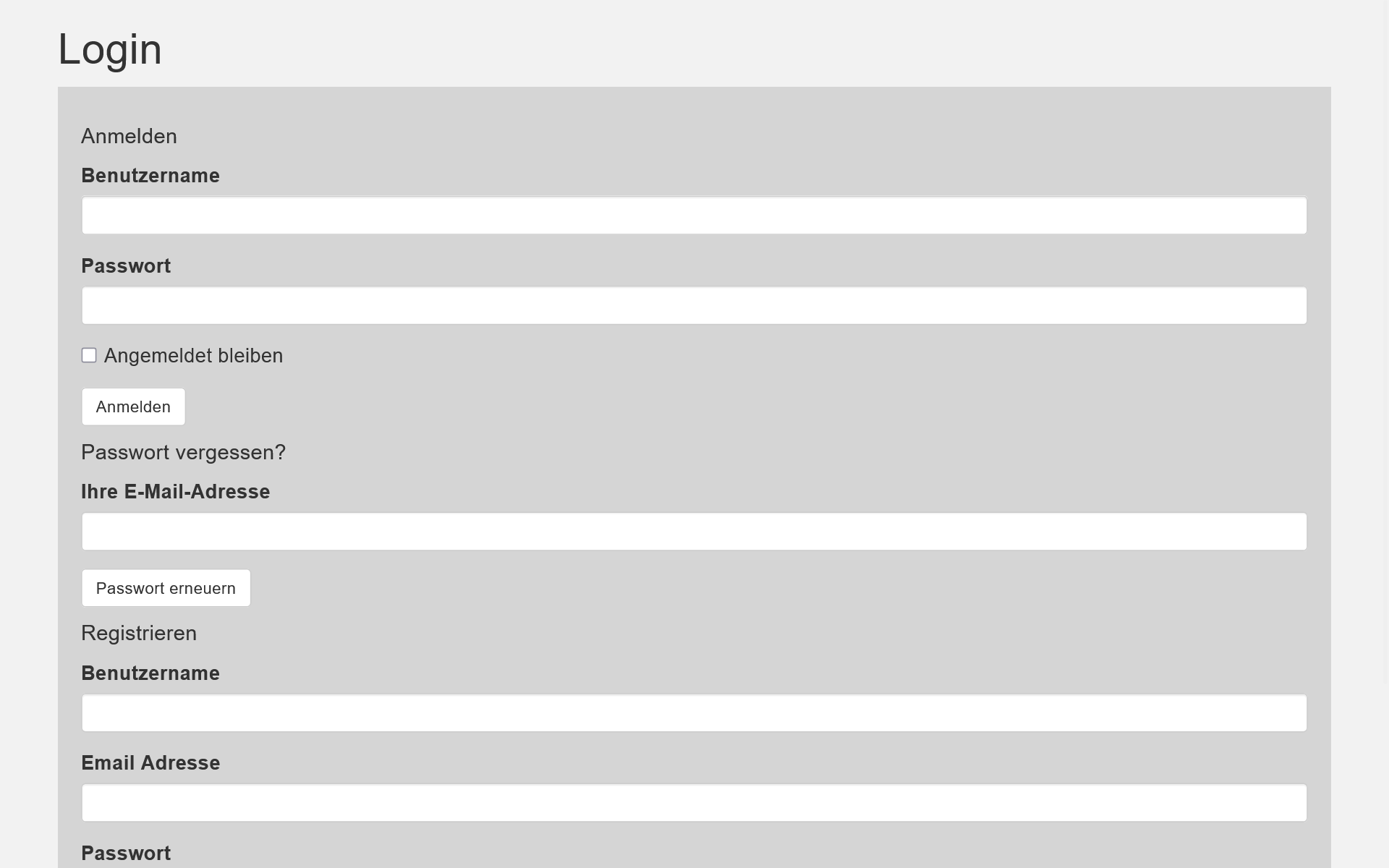
Open one of your website pages in a browser and replace the ending of the URL string from *.html to *.page. Enter your name and password, then confirm.
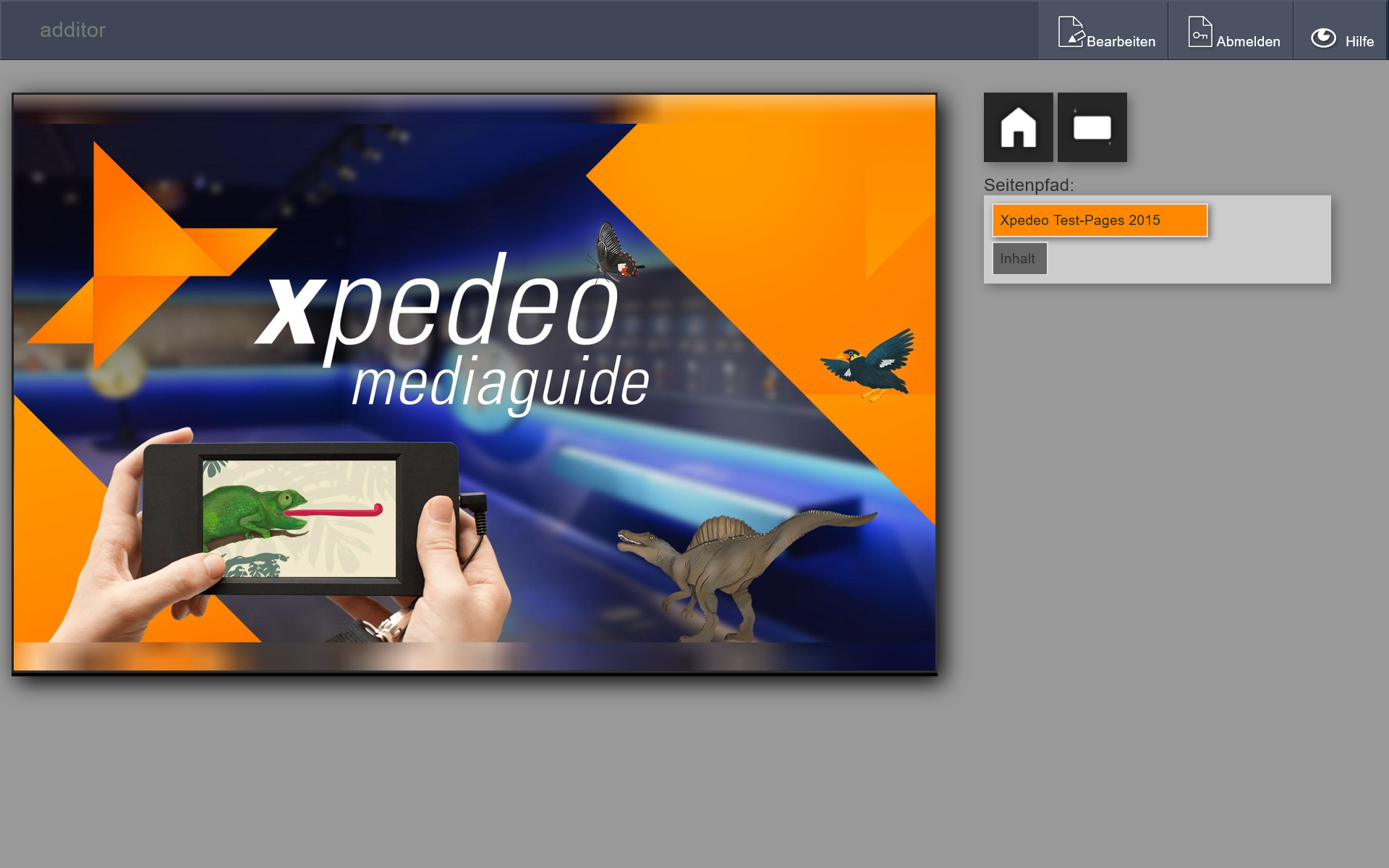
New icons will be loaded at the top of the page.
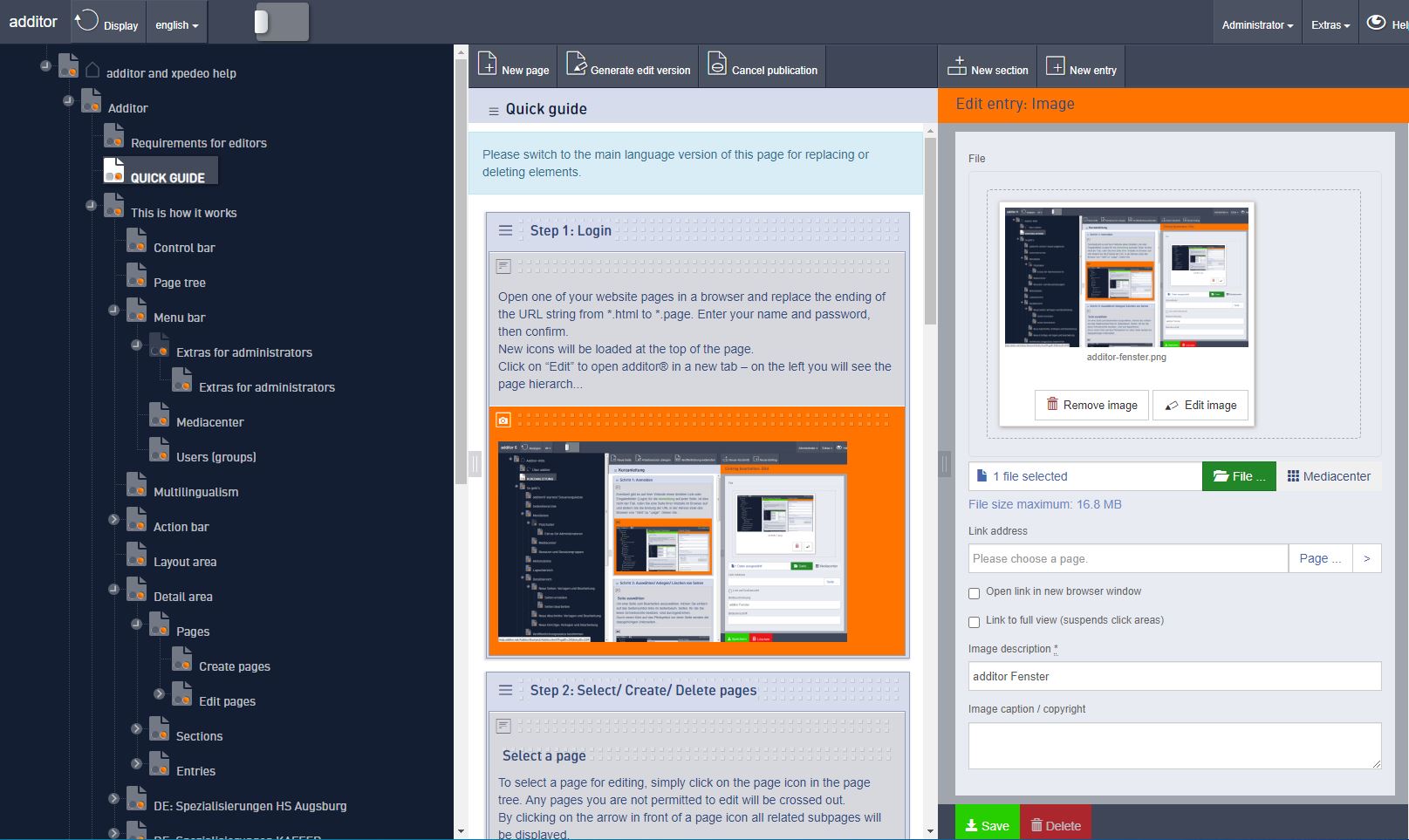
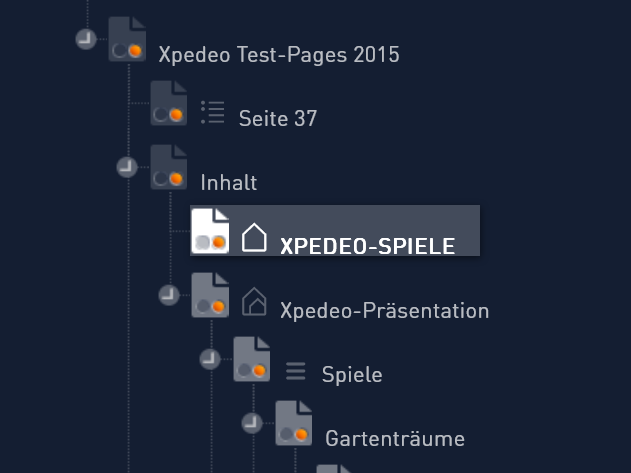
Click on “Edit” to open additor® in a new tab – on the left you will see the page hierarchy, in the middle the layout of your page and on the right the page settings.
8-4
Open one of your website pages in a browser and replace the ending of the URL string from *.html to *.page. Enter your name and password, then confirm.
New icons will be loaded at the top of the page.
Click on “Edit” to open additor® in a new tab – on the left you will see the page hierarchy, in the middle the layout of your page and on the right the page settings.

4-4-4



4-4-4
8-4
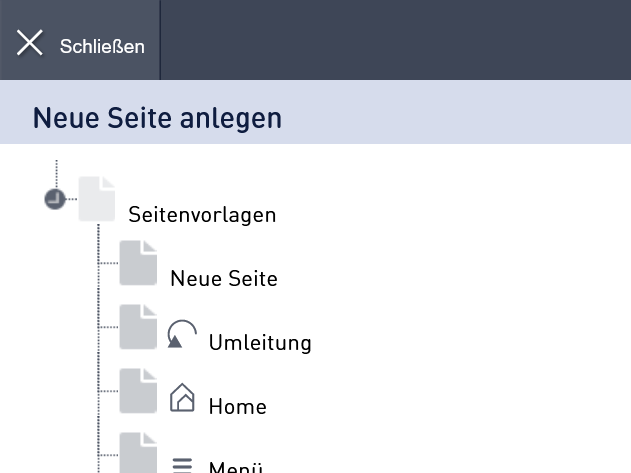
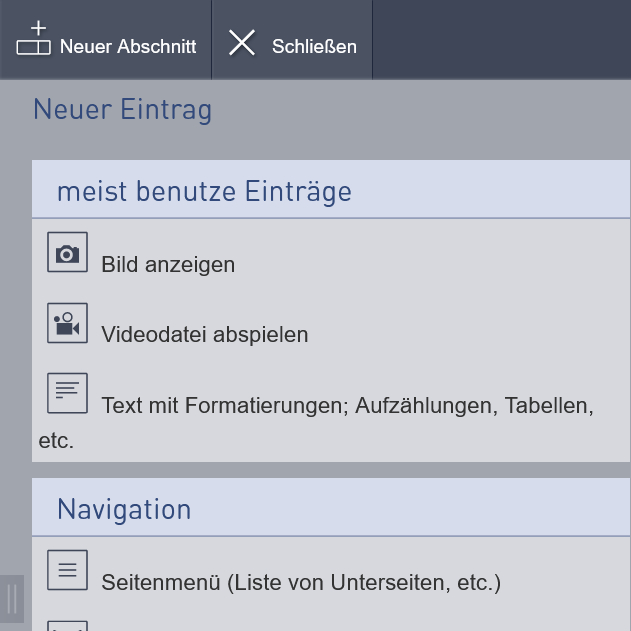
You can add sections with the “New Section” button and add entries with the “New Entry” button. Simply drag and drop one of the “section” or “entry” types offered on the right into the page layout.
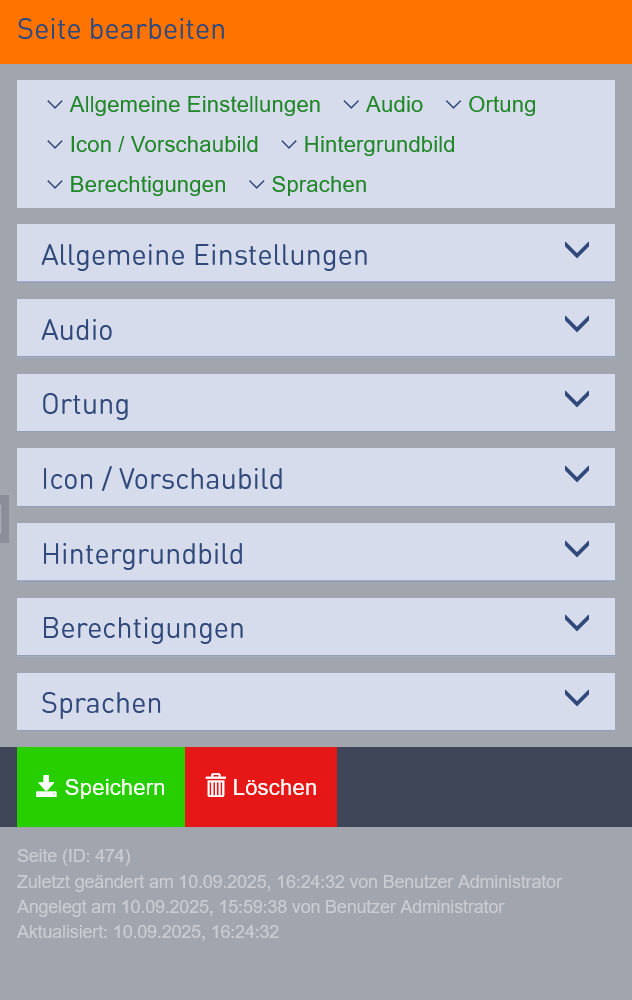
To edit an element click on its icon in the page layout. The setting options for that element are shown to the right (e.g. enter text, load a picture, etc.).
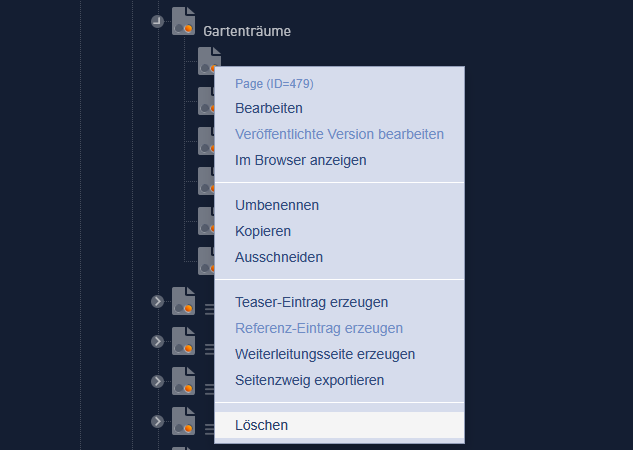
Use the “Delete” button in the bottom right corner to remove any elements you don’t want and the “Confirm” button to save any changes. When you click the “Display in Browser” button in the top left corner the changes will be made and the new page will be displayed in the browser.
Copy content elements
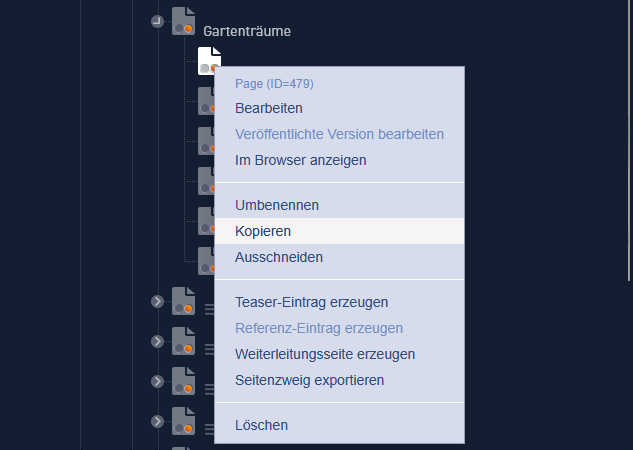
You can copy any section or entry to another position on the current page or to any other page. Make a right click on the icon to the top left of the required section or entry. If you select "copy" the element will be shown in the clipboard and you can drag it from there to the desired position.
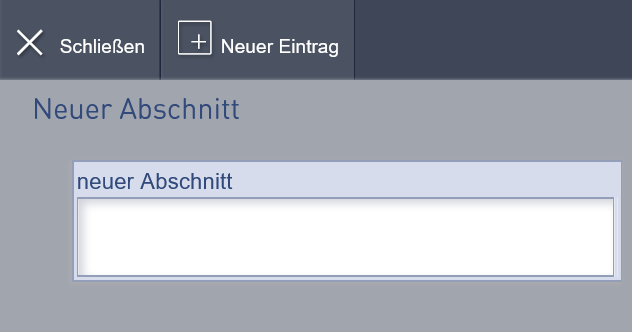
If you want to see the result of your work, click the "display" button in the top left corner. Your changes will then be displayed directly in the window in which you started into edit mode.
In the icon bar you can click on "To published version" respectively "To edit version" to toggle between the versions of the page.
If you are not sure which pages have edit versions, check the page tree: a green bullet marks an edit version, an orange bullet marks a published version. If both bullets are displayed you can toggle between both versions.

8-4
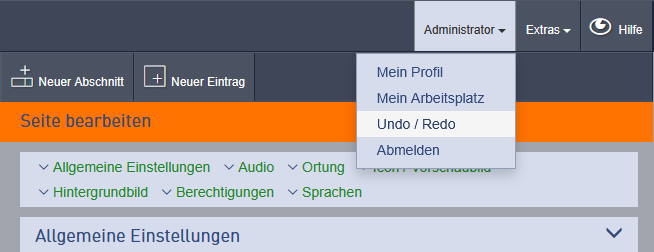
Just click on „Undo/ Redo“ in the menu in the upper right corner under your user name. The list of all work steps will be displayed there. You can undo them step by step.
And if you liked it better before your “undo”, you can "redo" your "undo".
The result will be shown in the layout window immediately.
Please note: if there is more than one user working in parallel on one page, this function is not fully usable.